

Ways To Add Product Reflections In Photoshop
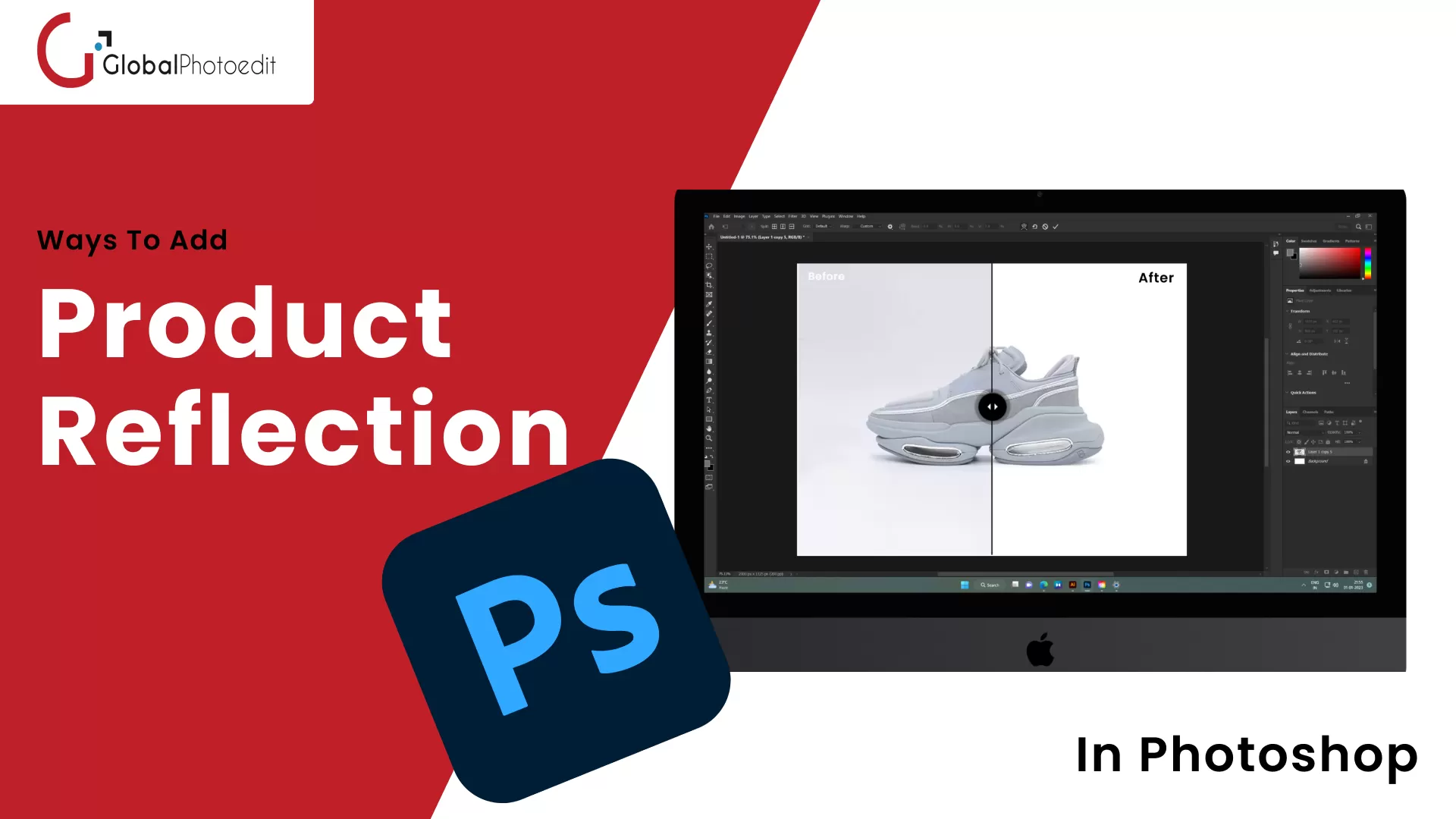
Image quality of a product is really important and can win or lose customer interest. Incorporating reflections into your product images is a subtle yet powerful method of enhancing your images, whether you're marketing jewelry, electronics, or upscale cosmetics.
Adobe's top image-editing software, Photoshop, offers several methods for creating realistic product reflections. These enhancements, from water-like ripple effects to reflective floor reflections, are available to be tailored to any product category and style.
This guide will provide you with an in-depth overview of learning how to incorporate reflections in Photoshop, whether you're an experienced graphic designer or just a beginner do-it-yourself product photographer. For any help with product image editing, reach out to experts at Global Photo Edit.
Why Reflections Are Important Aspects of Product Photography?
Reflections do not only make an image look beautiful; they play several key factors pertaining to aesthetics and authenticity. Here is a list of attributes that you can add to your photoshop product image by applying reflections:
- Enhance Appearance: Reflections can create a sophisticated, high-end appearance, making products look higher-end and more refined.
- Adds Depth and Dimension: They create a feeling of depth and of reality, and make two-dimensional product shots more interesting and lively.
- Enhance Product Focus: A light reflection leads the viewer's attention back to the primary Product without much distraction.
- Helps Reflect Product Quality: Reflections assist in accentuating surfaces and textures (e.g., metal, glass, or shiny finishes), reflecting the product more accurately.
- Creates Symmetry and Balance: As per expert at an Global Photo Edit- an image editing company, reflections can bring appealing symmetry, creating harmony and overall composition in the image. It makes the image more appealing to the target audience.
Step-by-Step Guide: How to Add Reflections in Photoshop?
Adding reflections to an image is a matter of skills and you will improve with every reflection that you make. Here is a step-by-step guide to add reflections in Photoshop. If you cann’t do it by yourself, reach out to Global Photo Edit, and avail our product photo editing service.
Step 1: Prepare Your Workspace
- Open your product image in Photoshop.
- Make sure the product is on its own layer. If you can't see the product clearly, click on the Pen Tool (P) or go to Select and choose Subject to focus on it.
- Put it on a nice, clean background, like white or something neutral.
Step 2: Duplicate the Product Layer
- Click on the product layer in the Layers Panel,
- Press Ctrl + J (Windows) or Cmd + J (Mac) to make a copy of the layer.
- ( Let's call this new layer "Reflection" so it's easier to understand.)
Step 3: Flip the Reflection
- If you've got the "Reflection" option on, first click Edit, then Transform, and finally Flip Vertical.
- Use the Move Tool (V) to drag the flipped product right below the original, making sure the bottom edges line up like it's sitting on a mirror.
Step 4: Use a Gradient Mask to create a nice fade effect
- Select the "Reflection" layer,
- Hit the button that looks like a little mask at the bottom of the layers menu,
- Select the Gradient Tool (G) and ensure your gradient is set from black to white (foreground to background).
- Drag the mask upwards to make the reflection blend into the background seamlessly.
As per product editing experts, this makes the reflections look more real as they get fainter the further away they are, just like in real life.
Step 5: Reduce Opacity for Realism
- Make the "Reflection" layer a bit more see-through, like 20-50% opacity, to get the right look
- Looking at things can be super helpful, but sometimes, less is actually more when you're trying to figure stuff out.
Step 6: Add Blur (Optional but Recommended)
Select Filter, then Blur, and finally choose Gaussian Blur to make the reflection edges a bit blurry, like 1-5 pixels, to give it a softer look. This makes the reflection look more beautiful and whimsical. It specially works when you want to add a water like reflection.
Step 7: Add some cool textures or shadows to make it look more realistic (if you want to go the extra mile)
- If your product's sitting on a shiny table, you might want to throw in some little shadows or rough spots to make it look more real.
- Experts at the product image editing service providers should use a soft round brush at low opacity (10-15%) and paint shadows to simulate depth.
Benefits of Using Smart Objects for Reusable Reflection Effects
There are a lot of benefits of using Smart Objects for Reusable Reflection Effects. This feature allows you to maintain one blueprint for your product's appearance, ensuring consistency across all instances.
This will allow product image editing experts to apply non-destructive edits to the layer and lets you tweak stuff without messing up your setup and swap things around fast, keeping your reflection setup intact. All you have to do is click on the Smart Object whenever you want to change the product image, and the reflection will match up with the new image.
What Works Best? Horizontal or Vertical Reflections
The majority of product reflections are vertical, underneath the object, as if the object rests on a mirror floor. Yet, for objects such as sunglasses, mirrors, or presentation screens, horizontal reflections (to the side or inside the object) can add to the realism. This requires more sophisticated masking and lighting simulation but adheres to the same fundamental principles:
- Duplicate and flip the image,
- Align the perspective,
- Mask the transition and,
- Adjust blur and opacity accordingly.
This process is particularly helpful in making mockup templates for packaging products or branding previews.
Creating reflections in Photoshop is both science and art. While the general technique is easy enough—copy, flip, fade, and blend—the finer points of lighting, blurring, and separation of shadows are what gives you a reflection that does not look like a gimmick.
In a virtual marketplace where make-or-break impressions are made, incorporating reflections is an effective means of presenting your product in the most flattering light—literally and figuratively. Whether you're treating one product image or creating a whole e-commerce catalog, the key is to master reflection techniques. The more time and effort you invest in honing these skills, the more naturally you'll use them to portray various products and marketing situations.
Conclusion
Mastering product reflections in Photoshop is more than just a visual trick. It’s a powerful way to elevate your product photography and enhance your brand's visual identity. Whether you're creating a high-end look for luxury goods or adding subtle realism to everyday items, reflections bring depth, polish, and professionalism to your images.
You can follow the step-by-step mentioned above, but it's not that easy for beginners. In that case, it's better to reach out to a product image editing company to outsource the work.
In the digital marketplace, attracting online consumers to products can be difficult, as they seek authenticity and engaging visuals over generic images. Incorporating reflection and shadow effects into product photos is crucial for drawing buyers, as these elements add originality, a natural feel, and authenticity. Without these effects, images appear generic and may fail to attract new clients. While certain e-commerce platforms like Amazon and eBay may have restrictions on mirrored product images, the decision to upload them to one's own website remains at the seller's discretion.
Frequently Asked Questions
Background Image Composite Editing and How to Do in Photoshop
Background image composite editing is one of the most effective ways or techniques used by...
Read More
How to Get Adobe Premiere Pro for Free in 2025 (Step-by-Step Guide)?
Adobe Premiere Pro is a fantastic video editing software that's loved by many. It stands...
Read More
Best Practices for Newborn Baby Photo Retouching in Photoshop
The first days of a newborn’s life are fleeting moments that parents long to preserve....
Read More
How to Cut Out Hair in Photoshop?
Precision and skill are paramount in the world of digital photo editing, especially when it...
Read More
Newborn Baby Photo Editing & Retouching Tips in Photoshop
Editing the photos of a new baby is very delicate because you do not only...
Read More
How to Create a Clipping Path in Photoshop?
Clipping paths are now an essential tool when working with images and graphic designing since...
Read More